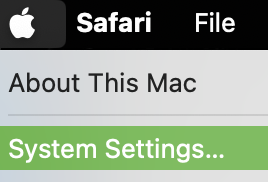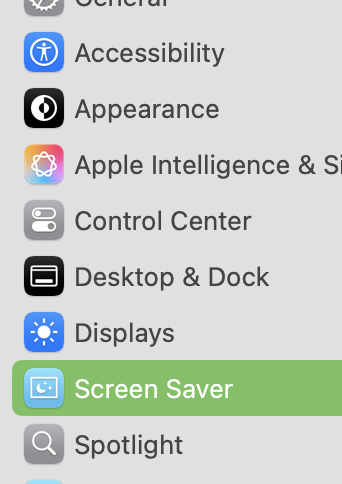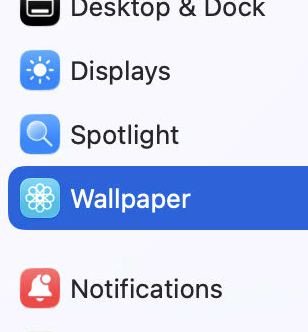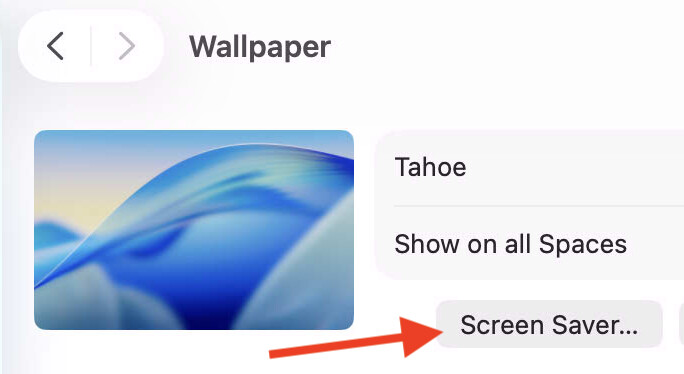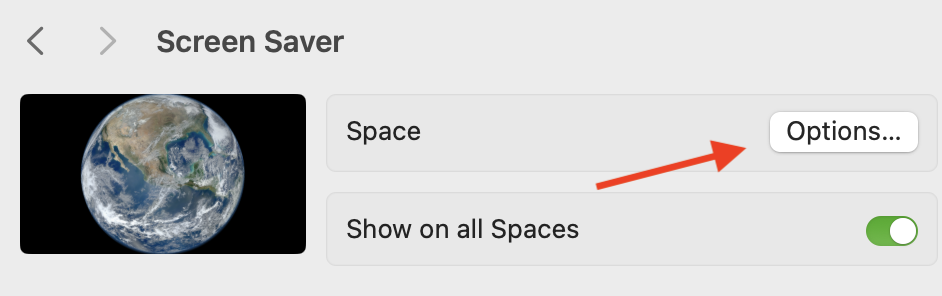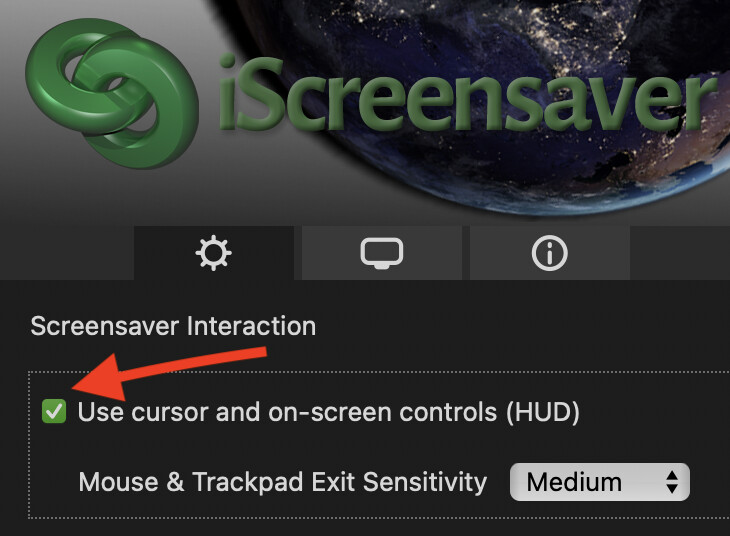
iScreensaver Designer allows you to build a screensaver that includes hundreds or even thousands of images and videos.
Being able to navigate these images while the screensaver is running can be a useful feature. This feature is called the Heads-Up Display (HUD) also known as On Screen Controls (OSC).
For information about how to enable the HUD feature in a screensaver when authoring it, see Editing the Control Panel Options
Using the HUD with modern versions of macOS
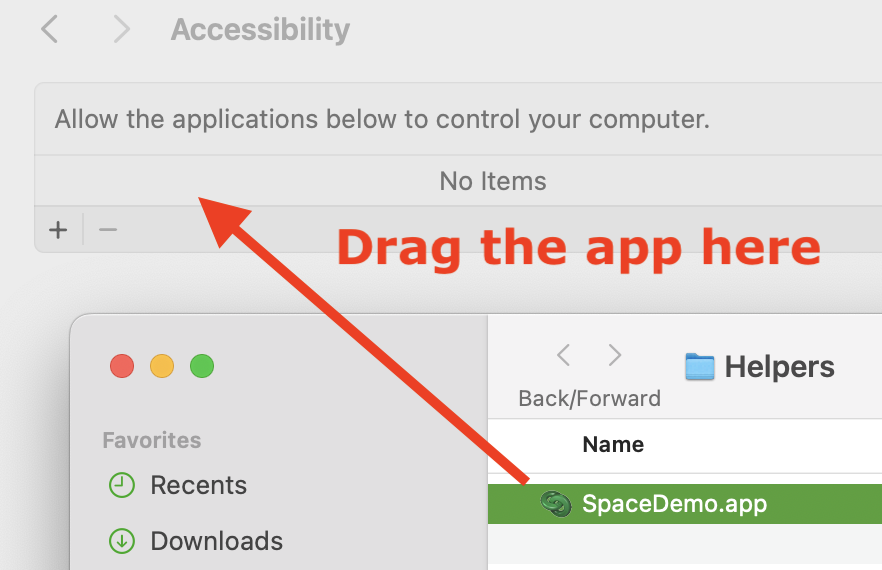
Due to security restrictions in recent versions of macOS, to use the HUD requires you to give Accessibility permissions to the screensaver. This allows the screensaver to detect when you are using the mouse or track pad.
Here are the steps you will see during screensaver installation:
First, click the ‘Open’ button:
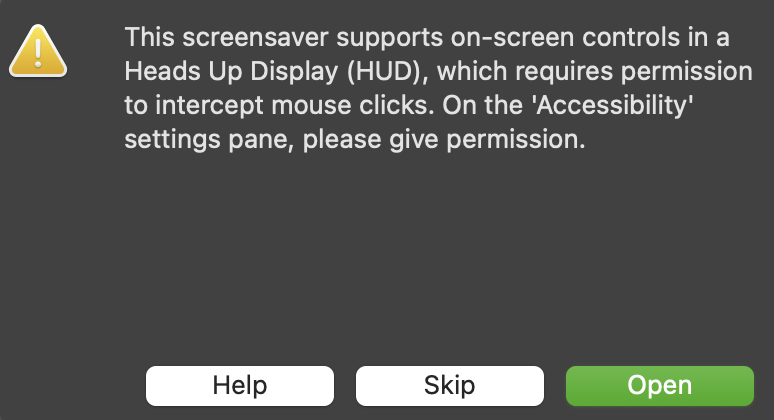
Then, click the ‘Open System Settings’ button:
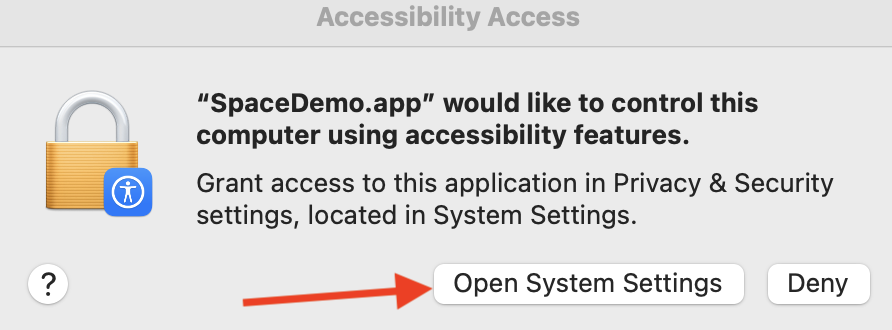
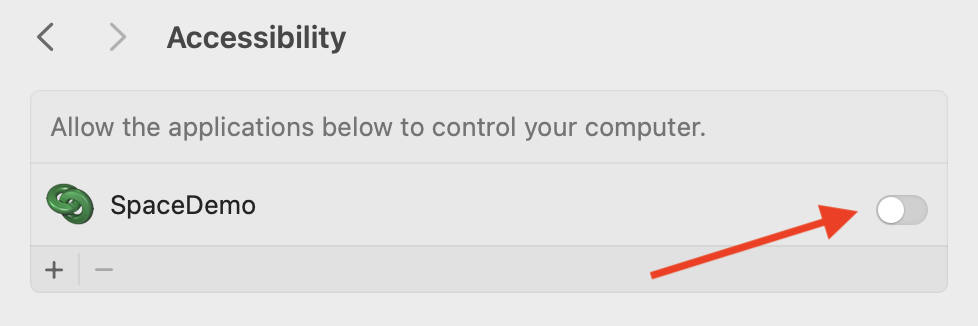
Finally, click the button to give the Accessibility permission:
Now, when the screensaver is running, gentle mouse or trackpad movement will bring up the HUD, which lets you navigate through the videos and/or images:

When the HUD is enabled, you can easily exit the screensaver in several ways:
- press any key on the keyboard
- click the mouse or trackpad with the cursor located outside of the HUD
- wiggle the mouse or trackpad with a fast motion
- click the “X” button in the HUD